


You’re in the middle of a presentation, working on an urgent document, or just casually watching YouTube—and then it happens.
Your screen turns solid blue, a sad face icon appears, and a cryptic message reads:
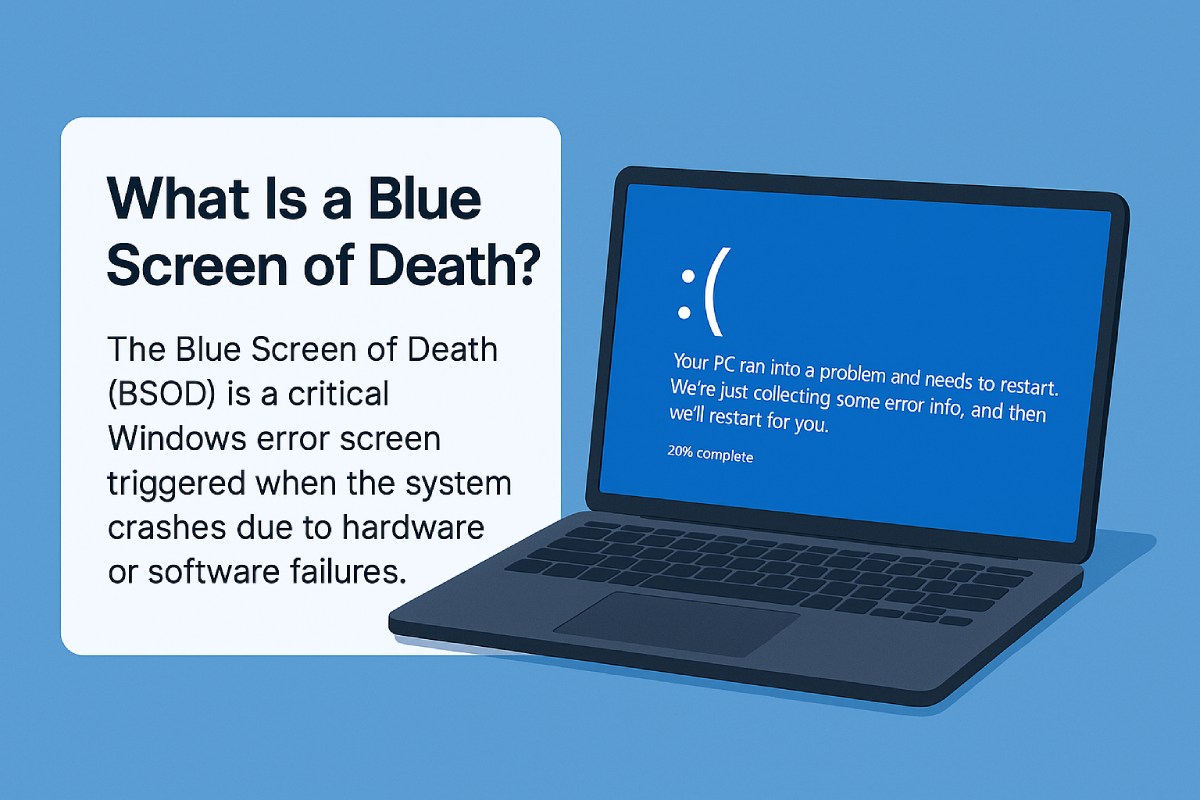
“Your PC ran into a problem and needs to restart.”
That unexpected, frustrating interruption is what many know as the Blue Screen of Death. But for those unfamiliar, you might be wondering: what is a blue screen of death, and why does it strike without warning?
In this guide, we’ll help you understand what causes BSODs, how to fix them, and—most importantly—how to prevent them. You’ll also hear from real users who’ve faced this dreaded error and bounced back with smarter setups and stronger systems.
Let’s dig in.
1. What Is a Blue Screen of Death?
A Blue Screen of Death (BSOD) is a critical system error screen displayed by Windows when the operating system encounters a fatal error it cannot recover from. It forces the system to stop and restart, usually displaying an error code that helps identify the issue, such as faulty hardware, driver conflicts, or corrupted system files.
2. The Moment Your Screen Turns Blue
You’re in the middle of a presentation, working on an urgent document, or just casually watching YouTube—and then it happens.
Your screen turns solid blue, a sad face icon appears, and a cryptic message reads:
“Your PC ran into a problem and needs to restart.”
Welcome to the Blue Screen of Death—an infamous Windows error that every long-time PC user has faced at least once. But what is a blue screen of death, what causes it, and how can you fix it or prevent it from happening again?
In this guide, we’ll break down everything you need to know, backed by real-world user stories and practical solutions.
3. What Exactly Is a Blue Screen of Death?
The BSOD, officially known as a Stop Error, is Windows’ way of protecting your system when something goes catastrophically wrong. When Windows detects that continuing to run could damage your system or data, it shuts down and displays a blue screen with error codes.
3.1. What It Looks Like
Depending on your Windows version, the screen might say:
-
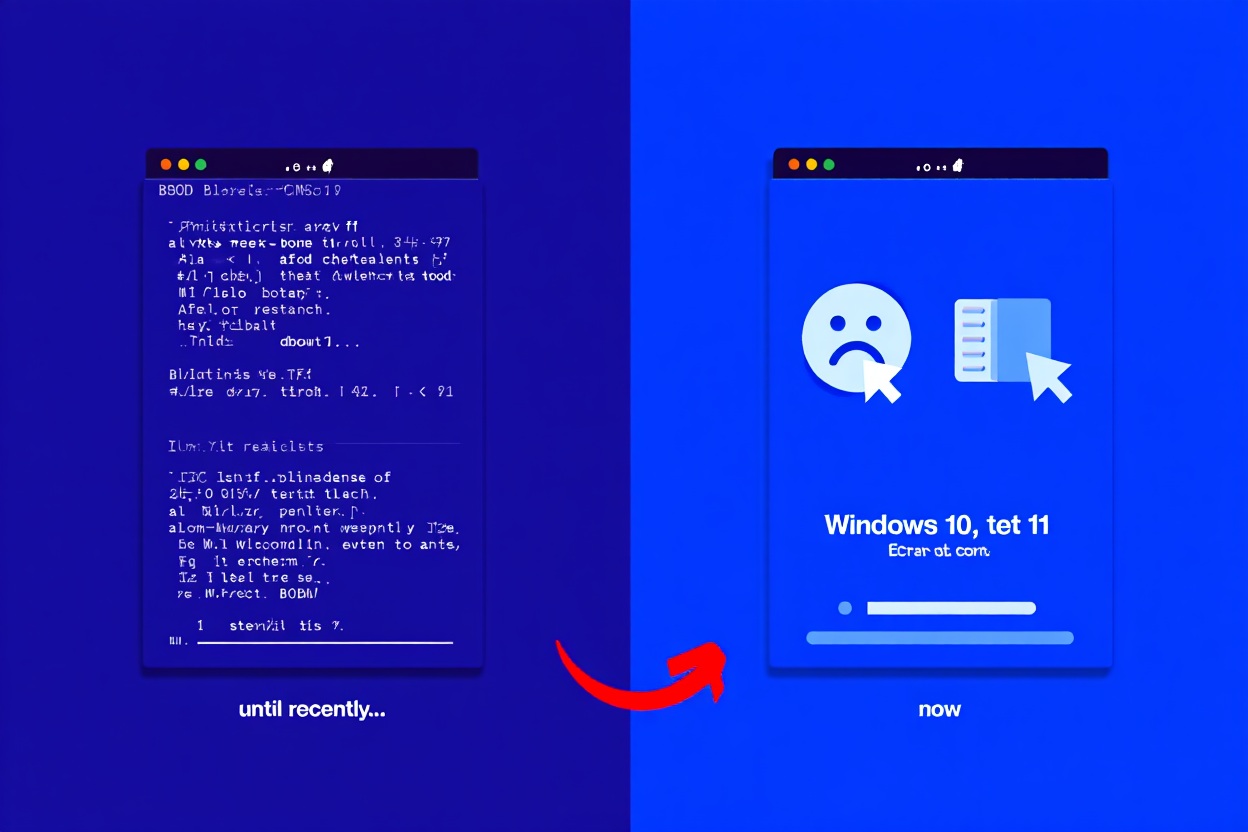
Windows 10/11: “Your PC ran into a problem and needs to restart.”
-
Windows 7: A screen full of white technical text and codes.
3.2. Common Error Codes
-
CRITICAL_PROCESS_DIED -
IRQL_NOT_LESS_OR_EQUAL -
PAGE_FAULT_IN_NONPAGED_AREA -
VIDEO_TDR_FAILURE -
UNEXPECTED_KERNEL_MODE_TRAP
4. What Causes the Blue Screen of Death?
The BSOD can be caused by a variety of issues, including:
4.1. Faulty Drivers
Old, incompatible, or corrupted drivers can trigger BSODs—especially GPU, network, or motherboard drivers.
“After updating my graphics driver, my laptop crashed with a blue screen every time I launched a game.”
– An Nguyen, IT student
4.2. Failing Hardware
Defective RAM, overheating CPU, or a dying hard drive can cause critical system crashes.
4.3. Corrupted System Files
Damaged Windows files—often caused by abrupt shutdowns, malware, or bad updates—can destabilize your system.
4.4. Overclocking
Overclocking your CPU or GPU beyond safe limits can result in hardware instability and blue screens.
4.5. Software Conflicts
Recently installed apps, antivirus software, or system utilities can cause conflict with the OS kernel.
5. What to Do When You See a BSOD
Don’t panic. Follow these steps:
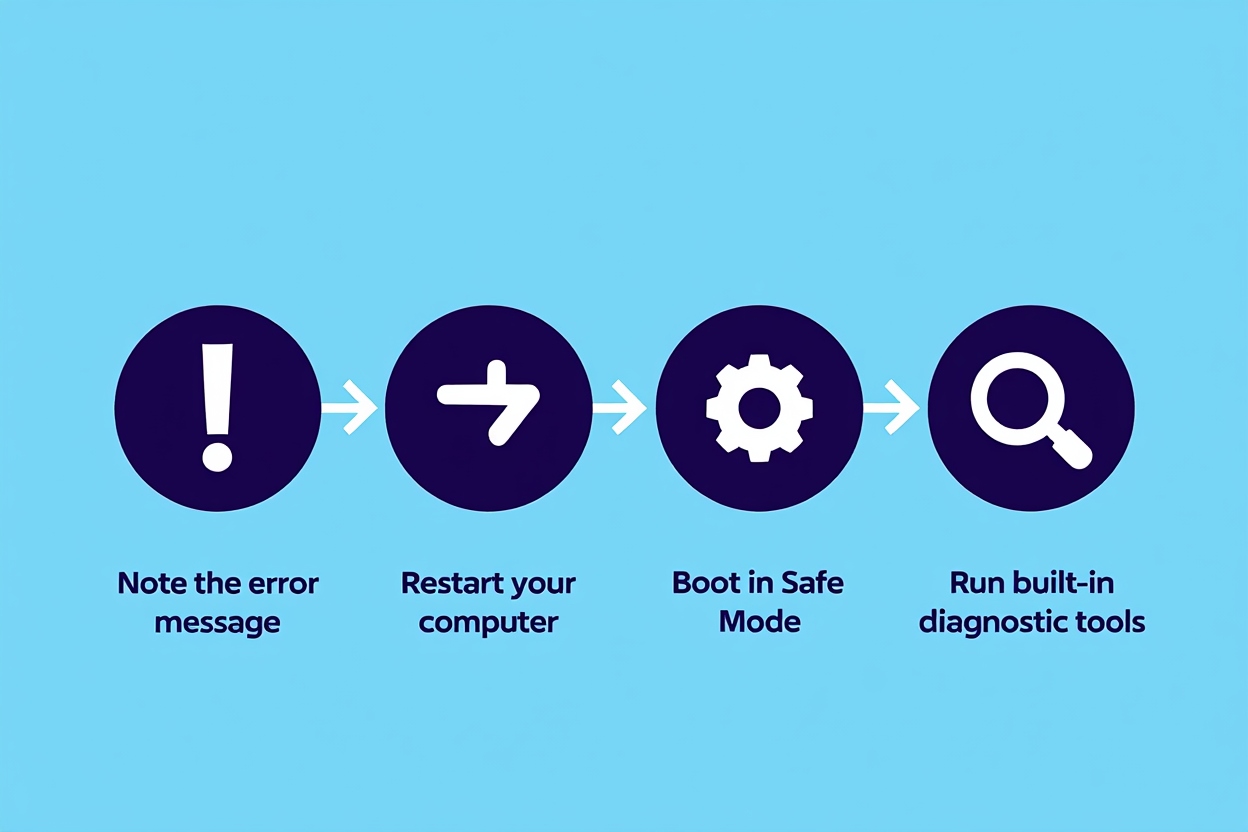
5.1. Note the Error Code
The BSOD error code gives a clue to what went wrong. Write it down or take a photo with your phone.
5.2. Restart Your Computer
Windows often restarts automatically after a BSOD. If not, manually restart. If the issue persists, boot into Safe Mode.
5.3. Use Windows Troubleshoot Tools
Go to Settings > Update & Security > Troubleshoot. Use tools like:
-
Startup Repair
-
Driver Verifier
-
Memory Diagnostic Tool
6. Real User Experience: “I Thought My Hard Drive Died”
“One morning, I turned on my PC and got hit with the dreaded BSOD—INACCESSIBLE_BOOT_DEVICE. I thought my hard drive was dead. Turns out, it was a Windows update that changed my SATA controller settings in BIOS. Switching it back from RAID to AHCI fixed everything.”
– Tu Pham, freelance developer
7. How to Fix Common BSOD Errors
IRQL_NOT_LESS_OR_EQUAL
Cause: Usually driver or memory issues.
Fix:
-
Update or roll back recently changed drivers.
-
Run Windows Memory Diagnostic to check your RAM.
CRITICAL_PROCESS_DIED
Cause: Essential Windows process failed.
Fix:
-
Boot into Safe Mode and uninstall suspicious software.
-
Use
sfc /scannowandDISMtools in Command Prompt.
VIDEO_TDR_FAILURE (nvlddmkm.sys)
Cause: GPU driver crash.
Fix:
-
Clean install latest GPU drivers.
-
Check for overheating or power supply issues.
PAGE_FAULT_IN_NONPAGED_AREA
Cause: Memory or driver error.
Fix:
-
Test RAM using
memtest86+. -
Remove recently added RAM sticks or hardware.
Read more:
- What is a Virtual Desktop? Everything You Need to Know in 2025
- What is a Shortcut Key? Definition, Examples & Guide (2025)
- What is BIOS? Everything You Need to Know
8. Preventing Blue Screen Errors in the Future
-
Keep Drivers Updated: Use manufacturer tools or trusted sources.
-
Run System Checks Regularly:
-
sfc /scannow -
chkdsk -
DISMcleanup tools
-
-
Avoid Risky Overclocking
-
Create System Restore Points Before Big Changes
-
Monitor Hardware Temperatures
9. Useful Tools and Resources
| Tool | Description | Link |
|---|---|---|
| WhoCrashed | Analyze crash dumps | whocrashed.com |
| BlueScreenView | Visual BSOD viewer | nirsoft.net |
| Driver Booster | Auto-update drivers | iobit.com |
10. BSOD and Windows Updates: Friend or Foe?
Microsoft updates fix bugs, but sometimes introduce new ones—including BSODs.
Tip: Delay major Windows updates for a few days to avoid early bugs. Check forums like TenForums or Reddit’s r/WindowsHelp before updating.
11. Final Thoughts from Users
“Most of my BSODs were driver related. I stopped letting Windows auto-update GPU drivers, and things got way better.”
– Linh Dao, graphic designer
“System restore points are my safety net now. One click saved me from a total reinstall.”
– Bao Tran, software engineer
12. Conclusion
A blue screen of death might look intimidating, but it’s often your system’s way of telling you something needs attention. With the right tools and a bit of patience, you can diagnose, fix, and prevent most BSOD issues on your own.
At Softbuzz, we’ve helped thousands of users regain control over their systems. Whether you just experienced your first BSOD or you’re trying to understand what is a blue screen of death and how to handle it, you’re in the right place.
Check out our Computer Tricks section for more expert tips and step-by-step guides to keep your PC running smoothly.
Got a BSOD story or need help diagnosing yours? Drop a comment—we’d love to hear from you.






![[Test Keyboard] The Fastest Way to Test Laptop Keyboard 2020 18](https://softbuzz.net/wp-content/uploads/2020/08/cach-test-ban-phim-laptop-nhanh-nhat-2020_softbuzz_8.jpg "[Test Keyboard] The Fastest Way to Test Laptop Keyboard 2020 19")