

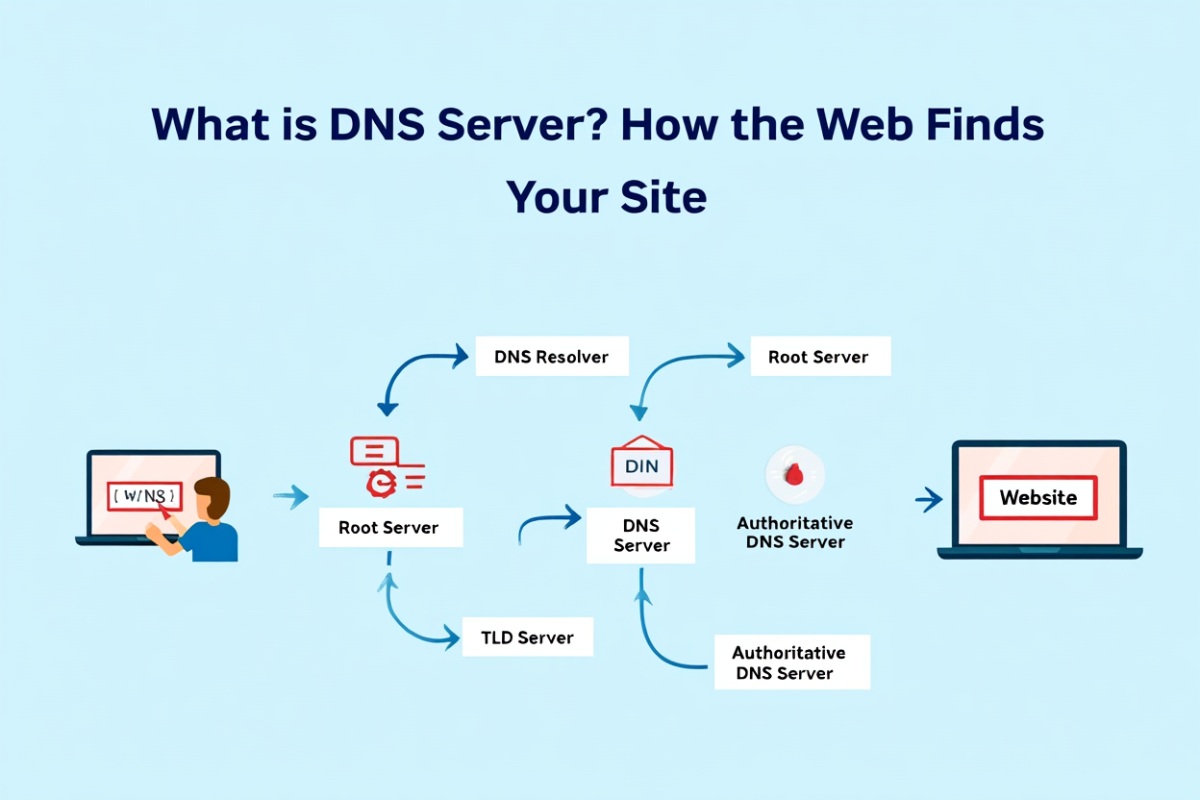
Every time you visit a website, click a link, or stream a video, you’re relying on a technology that works quietly in the background: the DNS server. Though it’s often overlooked, this critical piece of internet infrastructure ensures that your online experience is fast, accurate, and secure.
So, what is DNS server, and why should you care? In this guide, we’ll explore what it does, how it works, and why understanding DNS can help you browse smarter and troubleshoot faster.
1. What is DNS Server?
A DNS (Domain Name System) server is a specialized server that translates human-readable domain names like example.com into IP addresses like 93.184.216.34. Without DNS, you’d have to remember strings of numbers to visit websites—a daunting task, even for tech-savvy users.
Think of DNS servers as the internet’s phone book. When you search for a domain, your computer contacts a DNS server to find the correct IP address. Then it uses that address to connect you to the site.
2. How Does a DNS Server Work?
Every time you type a web address like www.example.com into your browser, your device doesn’t magically know where to go. Behind the scenes, a DNS server works like a digital GPS, translating that user-friendly name into a precise IP address so your browser can load the correct website.
Step-by-Step Breakdown
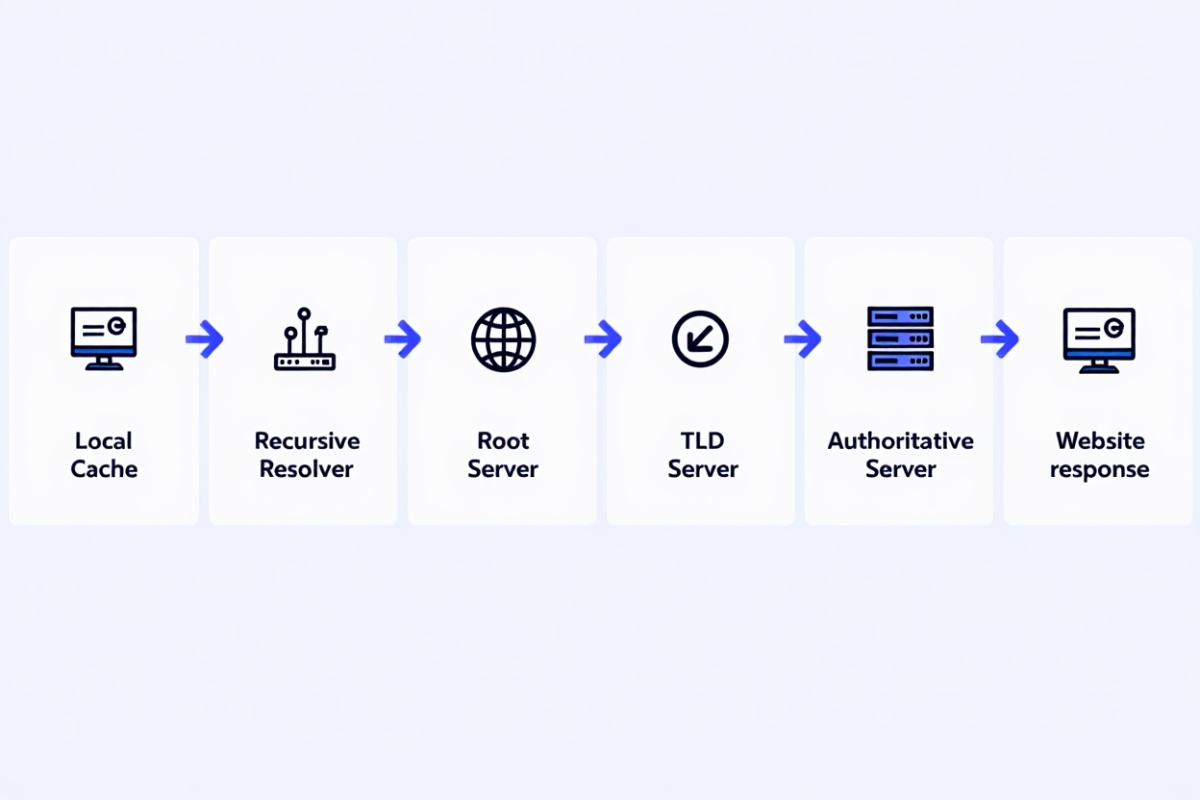
Here’s a closer look at what actually happens during a typical DNS lookup:
2.1. Step 1 – Checking the Local DNS Cache
Before reaching out to the internet, your device first checks its local DNS cache—a temporary memory that stores IP addresses of recently visited websites. If it finds the IP address there, the lookup ends immediately, and the site loads.
Author note: I once thought my internet was broken when a website wouldn’t load—turns out, my DNS cache was corrupted. A quick flush fixed everything!
2.2. Step 2 – Querying the Recursive Resolver
If the address isn’t cached locally, your device sends the query to a recursive DNS resolver, usually operated by your ISP (Internet Service Provider) or a public DNS like Google (8.8.8.8) or Cloudflare (1.1.1.1). The resolver’s job is to find the answer, no matter where it has to look.
2.3. Step 3 – Contacting the Root DNS Server
The resolver then contacts one of the 13 root DNS servers globally distributed across the internet. These servers don’t know the final IP address but can tell which Top-Level Domain (TLD) name server to contact next (like .com, .org, .net).
2.4. Step 4 – TLD Server Refers to the Domain’s Authority
Next, the resolver reaches the TLD name server (e.g., for .com). This server responds with the address of the authoritative DNS server for the requested domain.
2.5. Step 5 – Getting the Final Answer
The authoritative DNS server holds the actual record for the domain (example.com). It returns the correct IP address (e.g., 93.184.216.34) to the resolver.
2.6. Step 6 – Response and Caching
The recursive resolver sends this IP address back to your device. It also stores it in its cache so that future requests are faster. Your browser then connects to the server using the IP, and the website loads.
Example Scenario
Let’s say you want to visit www.softbuzz.com.
- Your computer checks its local DNS cache.
- If not found, it sends a request to a recursive resolver.
- The resolver asks a root server, which points to
.comTLD servers. - The
.comTLD server sends it to the authoritative server forsoftbuzz.com. - That server replies with the IP address (e.g.,
192.0.2.1). - You are connected to the website.
Why This Matters for Everyday Users
Although the entire process typically takes less than 300 milliseconds, a slow or misconfigured DNS server can delay page loads—or worse, misdirect you to unsafe sites.
Personal tip: I switched from my ISP’s DNS to Cloudflare’s (1.1.1.1), and noticed instant speed improvements and better uptime.
3. Different Types of DNS Servers
The DNS resolution process isn’t handled by a single machine—it’s a collaborative effort involving multiple types of DNS servers. Each plays a unique role in helping your browser find the right IP address.
Here’s a breakdown of the four main types of DNS servers and how they work together:
3.1. Recursive DNS Resolver
Role: Acts as the front-line responder to your DNS query.
When you type a website into your browser, your request is first handled by a recursive resolver. Think of it as your personal DNS assistant—it receives the query and takes responsibility for finding the correct answer.
-
Example: Google Public DNS (8.8.8.8), Cloudflare (1.1.1.1)
-
Key Feature: Caches previous responses to speed up future queries
3.2. Root Name Server
Role: Directs the resolver to the right Top-Level Domain (TLD) server.
There are only 13 logical root DNS servers globally (with many physical instances), each responsible for responding to queries about the location of TLD servers (.com, .net, .org, etc.).
-
Example: Root server answers where to find information for
.org, but doesn’t know the IP ofwikipedia.org -
Key Fact: Maintained by global organizations like ICANN and operated via anycast for redundancy.
3.3. TLD Name Server
Role: Tells the resolver which authoritative server to ask next.
The TLD server handles requests for a specific domain extension like .com, .edu, or .gov. When contacted, it refers the query to the correct authoritative name server for that domain.
-
Example: TLD for
.comknows where to findsoftbuzz.com’s DNS records. -
Fun Fact: There are hundreds of TLDs managed by regional registries across the globe.
3.4. Authoritative Name Server
Role: Provides the final answer—the actual IP address of the domain.
This server hosts the DNS zone files and records (A, AAAA, MX, CNAME, etc.) for the domain. Once the resolver reaches this server, it gets the definitive IP address.
-
Example: The authoritative server for
softbuzz.comreturns the IP192.0.2.10 -
Key Insight: Website owners can manage these servers via their hosting provider or DNS service (like Cloudflare, AWS Route 53, etc.)
Summary Table
| DNS Server Type | Role in Lookup | Who Manages It |
|---|---|---|
| Recursive Resolver | Starts and manages full query | ISP or public DNS provider |
| Root Name Server | Directs to correct TLD | Global root server operators |
| TLD Name Server | Directs to authoritative server | Registry for domain extensions |
| Authoritative Name Server | Returns final IP address | Website or DNS hosting provider |
4. Why DNS Servers Are Crucial for Internet Speed and Security
4.1 Speed Enhancement
A well-performing DNS server reduces website load time significantly. Faster resolution equals faster access. Some DNS providers, like Cloudflare and Google DNS, are optimized for speed.
4.2 Downtime Avoidance
If a DNS server fails, you can’t reach the site even if it’s live. Reliable DNS hosting ensures uptime and availability.
4.3 Security Measures
Modern DNS services include features like:
- DNSSEC to prevent spoofing
- Filtering malicious domains
- DDoS protection
These protect users from phishing, redirection attacks, and data interception.
5. What Happens When DNS Fails?
Imagine you’re trying to access your bank’s website, but instead of loading, you get an error: “DNS server not responding.”
This might happen due to:
- Outdated DNS cache
- ISP server issues
- Malware hijacking your DNS settings
A simple switch to a public DNS server, like 1.1.1.1 or 8.8.8.8, often resolves the issue. For non-tech users, tools like namebench can test DNS performance automatically.

6. Best DNS Servers You Can Use
| DNS Provider | Primary IP | Secondary IP | Features |
|---|---|---|---|
| Google DNS | 8.8.8.8 | 8.8.4.4 | Fast, reliable, global reach |
| Cloudflare DNS | 1.1.1.1 | 1.0.0.1 | Privacy-first, encrypted |
| OpenDNS | 208.67.222.222 | 208.67.220.220 | Content filtering, business tools |
| Quad9 | 9.9.9.9 | 149.112.112.112 | Security-focused |
Switching to one of these can noticeably improve speed, security, and uptime.
Read more:
- What Is a VPN? A Complete Beginner’s Guide to Online Security
- What is LAN vs WAN? Key Differences Explained for Everyday Users
- What is Subnet Mask? A Beginner-Friendly Guide to IP Networks
7. How to Change Your DNS Settings
Changing DNS settings varies by platform, but the steps are simple:
7.1. On Windows:
- Go to Control Panel > Network and Sharing Center
- Click on your connection > Properties
- Choose IPv4 > Use the following DNS server addresses
- Enter your preferred DNS IPs
7.2. On macOS:
- Go to System Preferences > Network
- Select your connection > Advanced > DNS
- Add DNS servers manually
7.3. On Routers:
- Log in to router settings
- Navigate to DNS or WAN section
- Enter custom DNS addresses
This change applies to every device connected to that router.
8. DNS Privacy and Security Tips
DNS data can reveal which websites you visit. Here’s how to stay safe:
- Use DNS over HTTPS (DoH) or DNS over TLS (DoT) to encrypt queries
- Opt for DNS providers that have clear privacy policies
- Regularly flush your DNS cache to prevent tracking or spoofing
9. Conclusion
Understanding what is DNS server isn’t just a technical curiosity—it’s the key to unlocking how we access the internet every day. From typing a URL to reaching your favorite website in milliseconds, DNS servers make the process seamless, efficient, and secure.
With this knowledge, you can better diagnose connectivity issues, choose faster DNS alternatives, and even boost your privacy online. Whether you’re setting up a home network or managing enterprise infrastructure, DNS is at the heart of everything.
If you want to learn more about networking tips, performance hacks, and practical guides like this:
👉 Explore the Networking section at Softbuzz for more.
Got DNS-related questions? Drop them in the comments—we’d love to help!