
By using this site, you agree to the Privacy Policy and Terms of Use.
Accept
Softbuzz: Free software & smart tech tips for every userSoftbuzz: Free software & smart tech tips for every userSoftbuzz: Free software & smart tech tips for every user
  • Office
  • Windows
  • Software
  • News
  • Graphics
    • Adobe
    • Autodesk
    • Corel Draw
    Graphics
    Explore top free graphics tools, templates, and assets for designers. Boost your creative work with handpicked, high-quality resources.
    Show More
    Top News
    Free Lightroom CC Presets 2025 Thumbnail
    Free Lightroom CC Presets 2025 for Beginners: Download & Edit Guide
    14/08/2025
    Latest News
    Free Lightroom CC Presets 2025 for Beginners: Download & Edit Guide
    14/08/2025
  • Mobile
  • Games
  • Networking
  • Tips Trick
    • Computer tricks
    • Facebook tips
  • English
Search
  • About
  • Contact
© 2025 Softbuzz.net. All Rights Reserved.
Reading: Top 5 Simple Ways to Create Tables in Word 2016, 2013, 2010
Share
Notification
Font ResizerAa
Softbuzz: Free software & smart tech tips for every userSoftbuzz: Free software & smart tech tips for every user
Font ResizerAa
Search
  • Office
  • Windows
  • Software
  • News
  • Graphics
    • Adobe
    • Autodesk
    • Corel Draw
  • Mobile
  • Games
  • Networking
  • Tips Trick
    • Computer tricks
    • Facebook tips
  • English
Have an existing account? Sign In
Follow US
  • About
  • Contact
© 2025 Softbuzz.net. All Rights Reserved.

Top 5 Simple Ways to Create Tables in Word 2016, 2013, 2010

Computer tricksOffice

Top 5 Simple Ways to Create Tables in Word 2016, 2013, 2010

Anna
Last updated: 02/06/2025 9:41 am
Anna
Share
Top 5 Simple Ways to Create Tables in Word 2016, 2013, 2010 2
SHARE

Are you looking for how to create tables in Word 2016 or other versions of Word? Not sure how to do it? All will be explained in the article below by Softbuzz. Please stay tuned. I will share with you all the quick, detailed, and easy ways to insert tables in Word.

Contents
Why need to create tables in WordHow to create tables in Word 2016#Method 1: Create table in Word with few rows and columns#Method 2: Create table with many rows and columns#Method 3: Use built-in table templates in Word 2016#Method 4: Create a table using Excel spreadsheet#Method 5: Draw table in WordConclusion

Why need to create tables in Word

As we know, Word is one of the best and most popular tools for document editing today. Presenting text cleanly and neatly during editing is increasingly emphasized by users to make documents tidy, organized, and easier to read.

If you are looking for a stable version of Word, you should not miss

Office 2010 full

Download Office 2013

Office 2016 full

Therefore, creating tables in Word is inevitable. It helps you easily organize any content for better visibility, especially for data, spreadsheets…
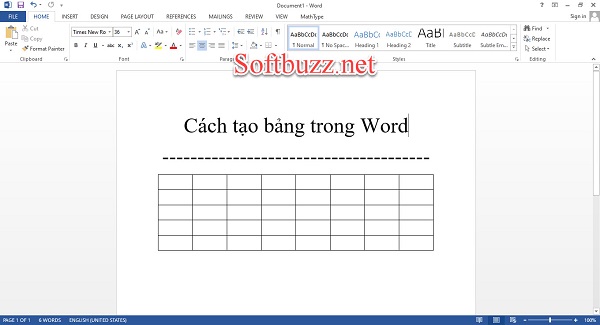
5 ways to create tables in Word 2016, 2013, 2010

So, have you learned how to create tables in Word 2016 or any other version? Stay tuned for the next parts of the article.

How to create tables in Word 2016

#Method 1: Create table in Word with few rows and columns

This is arguably the simplest and fastest way to create a table in Word 2010. With this method, you can easily quickly create tables in Word.

You can perform the table creation methods I guide below for all current versions of Word.

Here’s how to do it:

Step 1: Launch the Word you are using. (I’m using Word 2013)

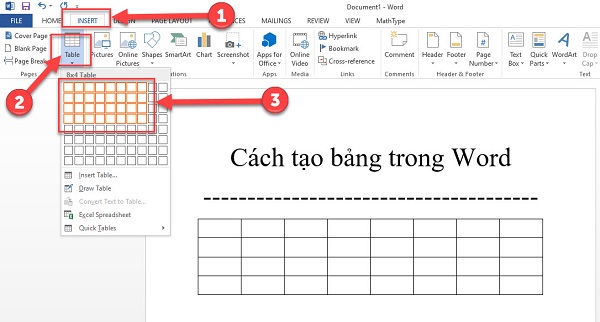
Step 2: In the Word interface, select Insert -> Select Table -> drag your mouse and choose the number of rows and columns you want. After selecting, the table will appear on your Word document.
Top 5 Simple Ways to Create Tables in Word 2016, 2013, 2010 5

#Method 2: Create table with many rows and columns

However, if your work requires creating a table in Word 2016 with many rows and columns, dragging and dropping tables is not feasible. You can directly select the number of rows and columns to create the table in Word.

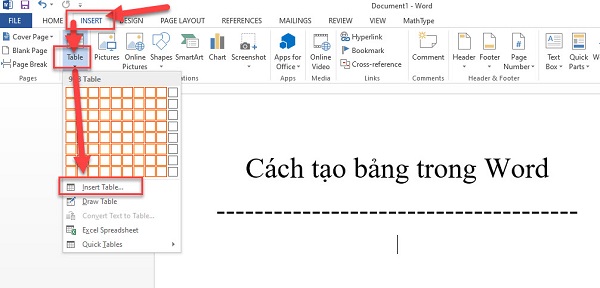
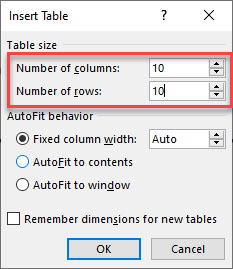
Step 1: In the Word interface, select Insert -> choose Table -> select Insert Table…
Top 5 Simple Ways to Create Tables in Word 2016, 2013, 2010 7

Step 3: In the Insert Table dialog box, enter the information:

  • Number of columns: enter the number of rows.
  • Number of rows: enter the number of columns

Then click OK to finish.
Top 5 Simple Ways to Create Tables in Word 2016, 2013, 2010 9

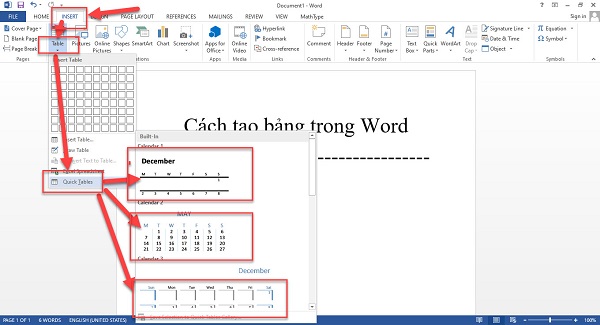
#Method 3: Use built-in table templates in Word 2016

Additionally, you can create a table in Word 2016 with many predefined templates available in the Word version for more attractive and eye-catching tables.

To do this, follow these steps:

In the Word interface, select Insert -> Table -> Quick Tables -> choose the table template you like.
Top 5 Simple Ways to Create Tables in Word 2016, 2013, 2010 11

That’s it. You can now edit the table style you have chosen.

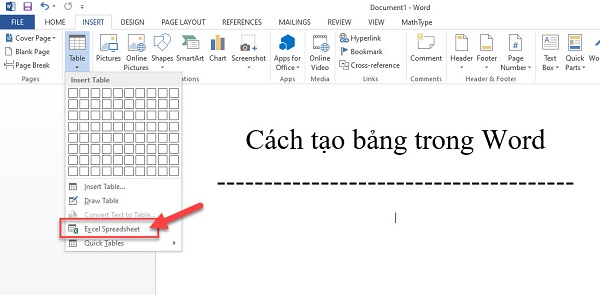
#Method 4: Create a table using Excel spreadsheet

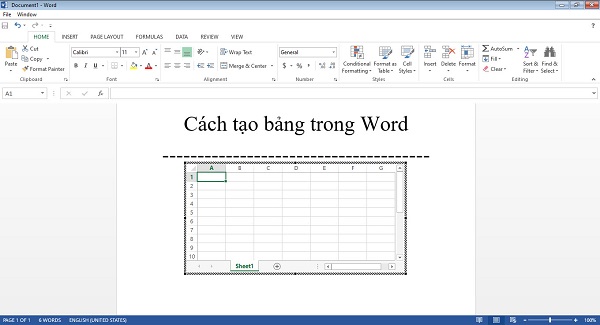
This is one of the interesting ways Softbuzz wants to introduce to you. With this method, you can perform calculations like in Excel, which better supports your work.

In the Word interface, select Insert -> Table -> Excel Spreadsheet
Top 5 Simple Ways to Create Tables in Word 2016, 2013, 2010 13

And check the results. Now you can work with Excel directly in Word.
Top 5 Simple Ways to Create Tables in Word 2016, 2013, 2010 15

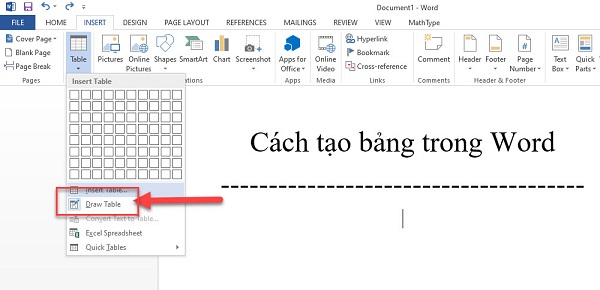
#Method 5: Draw table in Word

This is also a quick way to create a table in Word, though I feel this method is less used due to its low aesthetics :))) and it takes more time.

To do this, select Insert -> Table -> Draw Table
Top 5 Simple Ways to Create Tables in Word 2016, 2013, 2010 17

And now you can “draw” the table freely :))))

Conclusion

So, Softbuzz has shared with you 5 ways to create tables in Word 2016 and other popular and quickest Word versions today. Follow this article to learn more Word tips for yourself.

Thank you for following this article.

Compiled by https://softbuzz.net/

What Is File Explorer? Full Beginner’s Guide for Windows 2025
Top 5 Free and Effective Typing Speed Test Tools in 2023
Features of Microsoft Excel: Beginner & Pro Guide
How to convert uppercase to lowercase in Word, Excel and vice versa
How to Change Facebook Page Name in 2020 and Important Tips for Renaming your Page

Sign Up For Daily Newsletter

Be keep up! Get the latest breaking news delivered straight to your inbox.
[mc4wp_form]
By signing up, you agree to our Terms of Use and acknowledge the data practices in our Privacy Policy. You may unsubscribe at any time.
Share This Article
Facebook Copy Link Print
Share
Previous Article How to Number Pages in Word 2016, 2013, 2010 in Detail 19 How to Number Pages in Word 2016, 2013, 2010 in Detail
Next Article Top 8 Effective Ways to Fix Full Disk Error on Windows 10 in 2023 21 Top 8 Effective Ways to Fix Full Disk Error on Windows 10 in 2023
Leave a Comment

Leave a Reply Cancel reply

Your email address will not be published. Required fields are marked *

Stay Connected

248.1kLike
69.1kFollow
134kPin
50kSubscribe

Latest News

Gta 5 Cheats​
The ultimate guide to GTA 5 Cheats: Methods, codes, and platform-specific tips
Games
Trainer Cossack 3 thumbnail
Trainer Cossack 3: Meaning, usage, safety, and safer alternatives
Games
Cossack 3 cheat code thumbnail
Cossacks 3 cheat code guide: How to enable, use, and complete code list
Games
One Piece Burning Blood Robin thumbnail​
One Piece Burning Blood Robin guide – Mastering Nico Robin’s zoner playstyle and moveset
Games

You Might also Like

Share How to turn off win 10 update 100% success forever 33
Computer tricksWindows

Share How to turn off win 10 update 100% success forever

Anna
Anna
12 Min Read
Essential Excel 2010 Shortcuts You Might Not Know 37
Computer tricksOffice

Essential Excel 2010 Shortcuts You Might Not Know

Anna
Anna
0 Min Read
What Is Disk Fragmentation?
Computer tricks

What Is Disk Fragmentation? Understanding, Impact, Solutions

Filex
Filex
9 Min Read

Logo Footer Softbuzz

SOFTBUZZ aims to share technology knowledge, providing a warehouse of application software, office, graphics, windows, ghost and countless other entertainment software.

Quick Link

  • ABOUT
  • PRIVACY NOTICE
  • TERM OF USE
  • CONTACT

Support

  • ADVERTISE
  • ONLINE BESTHot
  • CUSTOMER
  • SERVICES
  • SUBSCRIBE

Sign Up for Our Newsletter

Subscribe to our newsletter to get our newest articles instantly!

    Softbuzz: Free software & smart tech tips for every userSoftbuzz: Free software & smart tech tips for every user
    Follow US
    Softbuzz is part of the H2T Media Group, a digital publishing company focused on delivering trusted tech content and product insights.
    • English